Minecraft Color Gradient Palette Generator
Generate hue-shifted color gradient palettes from any base color for Minecraft textures, skins, and pixel art.
 Free · No Install · Works On Desktop And Mobile
About This Tool
Straight black-and-white shading quickly makes Minecraft pixel art look dull and muddy. The Minecraft Color Gradient Palette Generator runs inside your browser workspace, creating cohesive hue-shifted color ramps from any base swatch so blocks, tools, and character skins read with rich vanilla-style depth.
Rather than guessing RGB shifts in an external paint app, you craft smooth shadow-to-highlight steps right next to your live 3D model. Both single-color ramps and dual-color blends update an instant preview bar as you tune hue rotation, brightness span, and saturation falloff.
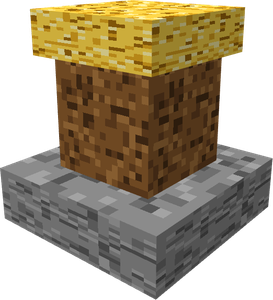
Every generated ramp drops straight into your Paint palette for immediate brushwork on wood, stone, or metallic cubes. Test palettes on the preloaded altar block, load another starter prop, or import custom sheets before saving clean PNG files.
- Single Colour and Two Colours tabs generate balanced tonal ramps from one swatch or bridge two contrasting hues cleanly.
- Live sliders dial in Colour Count, Hue Shifting Angle, Brightness Range, Curve, Saturation Falloff, and Colour Offset.
- Simple and Advanced views serve both quick palette generation and fine-grained highlight or shadow sculpting.
- Checkboxes for Use smaller ranges and Replace existing palette let you build multi-material swatch lists cleanly.
- Generated ramps load straight into Paint mode for immediate brushwork on 16x16 or higher-resolution textures.
How To Use This Tool
- Leave the default Multi-Texture Altar Block open on screen, or choose a crate or sword starter from Templates.
- Trigger the green Generate Gradient button on the top bar to open the Generate Gradient Palette window.
- Pick Single Colour or Two Colours, choose a starting shade, and adjust Colour Count, Hue Shifting Angle, Brightness Range, Curve, Saturation Falloff, and Colour Offset.
- Check Replace existing palette if desired, hit Generate, then paint oak_wood, stone_brick, or gold_trim using your new swatches in Paint mode.
- Use the blue Download menu to save your PNG texture, back up the .bbmodel project, or snap a viewport screenshot.
Tips And Best Practices
- Shift dark tones slightly toward cool blue or violet and highlights toward warm yellow to give stone and armor crisp contrast.
- Keep Colour Count around 5 to 7 steps for classic 16x16 blocks so shading stays punchy without looking noisy.
- Set Saturation Falloff near 30 percent so bright specular highlights never turn neon while midtones stay vivid.
- Leave Replace existing palette unchecked when texturing multi-material props so wood, brick, and gold ramps stay stored together.
Frequently Asked Questions
Why Does Hue Shifting Outperform Linear Shading In Minecraft?
Linear shading mixes pigments with flat black or gray, flattening small textures. Rotating shadows toward cooler hues and highlights toward warmer tones mimics sunlight and matches authentic vanilla pixel art.
When Should I Switch From Single Colour To Two Colours Mode?
Use Single Colour for uniform materials like oak planks or iron. Switch to Two Colours when transitioning across distinct shades, such as mossy stone blending from green into slate shadows.
What Does The Curve Slider Adjust In The Palette Generator?
Curve shifts where tonal steps concentrate along the ramp. Negative numbers cluster darker values for moody stone, while positive values allocate extra bright steps for snow or gold.
Can I Apply Generated Swatches To Custom Skins Or Weapons?
Yes. Load the Diamond Sword Texture template or import your own PNG in Textures, run Generate Gradient to fill your palette, and paint directly across the UV canvas or 3D model.